Can you use a Japan eSIM as a hotspot for a laptop or friends?
Yes. Hotspot, also called tethering, is allowed on our Japan eSIM, so your phone can share its connection with a laptop, a tablet or a travel companion's phone. The important part is that every device connected to your hotspot uses your plan's data: a friend on your hotspot is using your gigabytes, and a laptop can use one or two GB in an afternoon through background updates and cloud sync alone. If you plan to share regularly, pick the 10 GB or 20 GB plan rather than the smallest one.
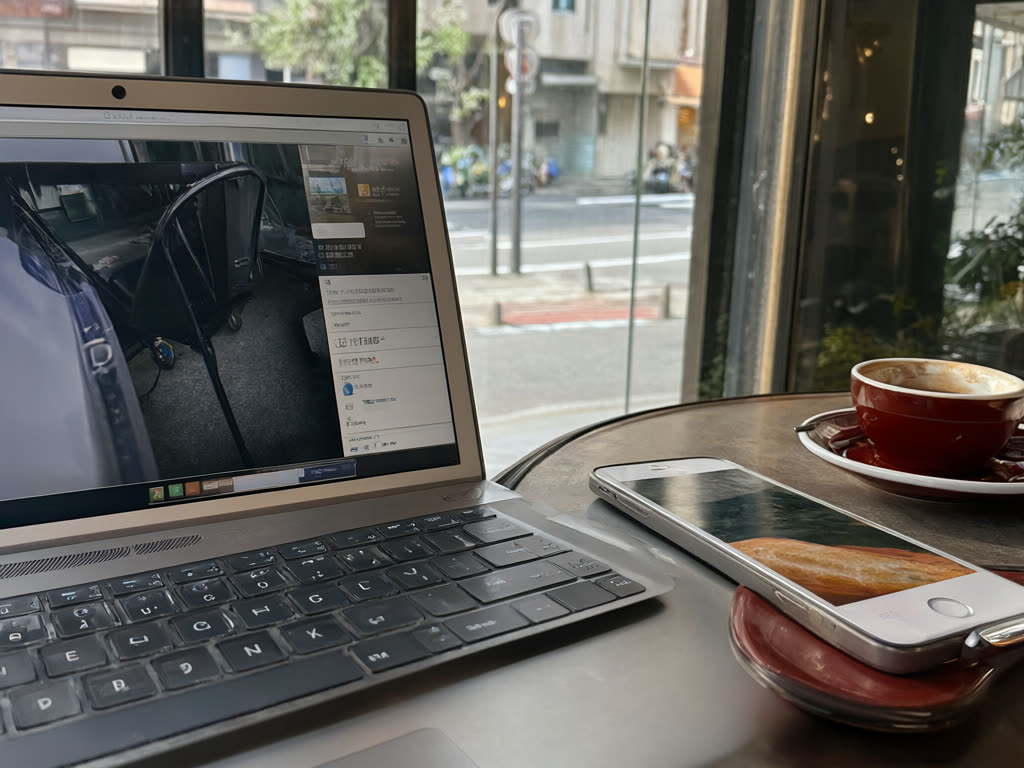
How hotspot data is counted
Your phone becomes a small Wi-Fi router. Traffic from connected devices goes out through your eSIM, and it all counts against the same allowance as your own use. There is no separate hotspot allowance.
Rough figures to plan with:
- A friend's phone used for maps and messages: similar to your own light use, around 150 to 300 MB a day.
- A tablet used for browsing and some video: easily 500 MB to 1 GB a day.
- A laptop for email and documents: a few hundred MB per hour of work, but much more if it syncs photos, downloads system updates or joins video calls. An hour-long video call alone can use around 500 MB to 1 GB.
Two common traps:
- Laptops treat Wi-Fi as unlimited. When a laptop joins your hotspot it may start an operating system update or upload your photo library. That can empty a small plan in minutes.
- Hotspot stays on. If you leave it switched on, devices that know the network can reconnect by themselves later.
Plan sizes, for reference: 1 GB / 7 days (¥480), 3 GB / 15 days (¥780), 5 GB / 30 days (¥1,100), 10 GB / 30 days (¥1,780) and 20 GB / 30 days (¥2,880). Data does not carry over, and if you run out you can buy another plan, which arrives as a new eSIM (what to do when data runs out).
How to turn hotspot on
First make sure the Japan eSIM is working on your phone and set as the mobile data line.
iPhone
- Open Settings, then Personal Hotspot (or Cellular, then Personal Hotspot).
- Turn on Allow Others to Join and note or change the Wi-Fi password.
- On the other device, choose your iPhone's name from its Wi-Fi list and enter the password. USB and Bluetooth also work.
- If a device cannot see the hotspot, turn on Maximize Compatibility on the same screen.
Android
- Swipe down from the top of the screen, then touch and hold Hotspot (on some phones it is under Settings, Network and internet, Hotspot and tethering).
- Turn on Wi-Fi hotspot and check the network name and password.
- Connect the other device from its Wi-Fi list. USB and Bluetooth tethering are in the same menu.
- If your phone offers to turn the hotspot off automatically when nothing is connected, turn that option on.
If the Personal Hotspot option is greyed out or missing, check that mobile data is on and that the Japan eSIM is the line selected for data. If it still does not appear, contact us with your phone model and a screenshot; settings differ between phones.
How to stop a laptop eating your data
Do this once, before you connect:
- Windows: in the Wi-Fi network's properties, turn on Metered connection. Windows then holds back most updates and some background sync.
- Mac: in System Settings, Wi-Fi, open Details for your phone's network and turn on Low Data Mode.
- Pause cloud sync in your photo and file apps (iCloud, Google Drive, Dropbox, OneDrive) while on the hotspot.
- Lower video quality in streaming and video-call apps.
- Turn the hotspot off when you finish, rather than leaving it running.
On iPhone, Settings, Cellular shows how much data has gone through Personal Hotspot. Android shows hotspot usage under the data usage screen. Check it after the first session so you know what your laptop really uses.
Sharing with friends: when it works and when it doesn't
Works well:
- A short trip where one person has a larger plan and the other only needs occasional maps.
- Giving a tablet or laptop internet for a few hours.
- A backup if a companion's own connection fails.
Works badly:
- Groups that split up during the day. A hotspot only reaches a few metres, so whoever leaves loses the connection.
- Several people all day from one phone. The phone's battery drains fast, it gets warm, and the person carrying it becomes everyone's router.
- Heavy laptop work every day. A larger plan helps, but consider whether Wi-Fi at your accommodation can take the heavy jobs.
For couples and families, separate eSIMs on each phone are usually simpler. Each phone needs its own eSIM, and you can buy up to five in one order (eSIMs for families and groups).
Things to know before you rely on hotspot
- One phone only. The eSIM is installed on one phone and cannot be moved. The hotspot shares that phone's connection; it does not let a second phone install the same eSIM.
- Battery. Hotspot uses a lot of power. Carry a power bank on hotspot-heavy days.
- Coverage. Hotspot speed depends on the signal your phone gets, which is 4G/5G where available and weaker in tunnels and mountains (rural coverage).
- Personal use. Our terms say each eSIM is for personal use and may not be resold. Sharing your hotspot with your own devices or travel companions is allowed; selling access to others is not.
Common mistakes
- Buying the 1 GB plan and then tethering a laptop.
- Forgetting to set the laptop's connection as metered.
- Leaving hotspot on overnight.
- Expecting a friend to stay connected after they walk away.
Quick answer: Yes, you can use our Japan eSIM as a hotspot for a laptop, tablet or a friend's phone. All data used by connected devices comes out of your plan, and laptops use far more than phones, so choose 10 GB or 20 GB if you will share, and set the laptop's connection to metered or Low Data Mode.
Last updated: 18 October 2026.
Sharing data? Size up your plan
Hotspot is allowed on our Japan eSIM. Connected devices use your plan's data, so the 10GB and 20GB plans suit laptops and sharing.
Japan eSIM from ¥480