Is my phone carrier-locked? How to check on iPhone and Android
On an iPhone, open Settings, General, About and scroll to Carrier Lock: if it says "No SIM restrictions", the phone is unlocked and can use a Japan eSIM. On Android there is no setting that works on every phone, so the reliable checks are inserting a SIM from a different carrier or asking your carrier directly. Phones bought outright from the manufacturer are almost always unlocked; phones bought on a carrier instalment plan or a cheap prepaid deal are the ones most likely to be locked.
A carrier lock matters because a locked phone will refuse any eSIM or SIM from another network, including a travel eSIM. If an eSIM cannot be installed or cannot connect because your phone is carrier-locked or does not support eSIM, we cannot refund it, so it is worth five minutes to check before you buy.
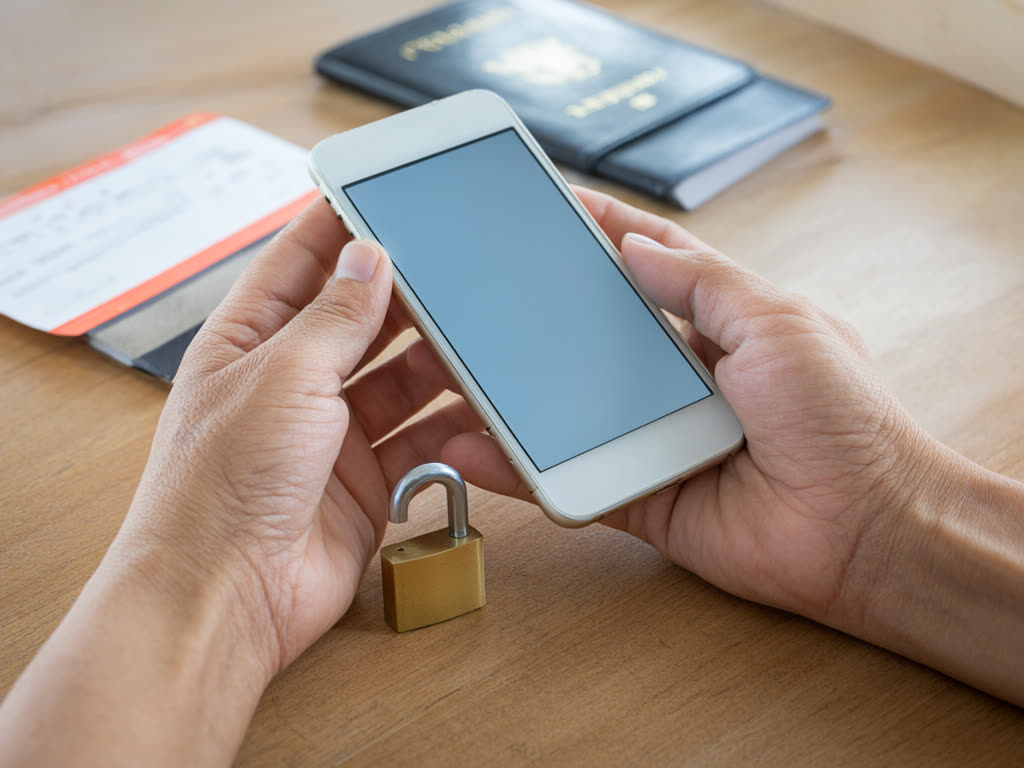
What a carrier lock is
A carrier lock (also called a SIM lock or network lock) is a restriction the selling carrier places on a phone so it only works with that carrier's service. It is usually there to make sure a discounted or instalment-paid phone gets paid off. It is separate from your screen passcode, from the SIM PIN, and from the "OEM unlocking" switch in Android's developer options, which concerns the bootloader and has nothing to do with carriers.
How to check on iPhone
- Open Settings, General, About.
- Scroll down to Carrier Lock (some regions show a slightly different label).
- Read the result next to it.
"No SIM restrictions" means the phone is unlocked and you are fine. Anything else, such as "SIM locked", means the phone is tied to a carrier. Only that carrier can unlock it; Apple cannot.
This entry exists on iOS 14 and later. If you do not see it, update iOS and check again.
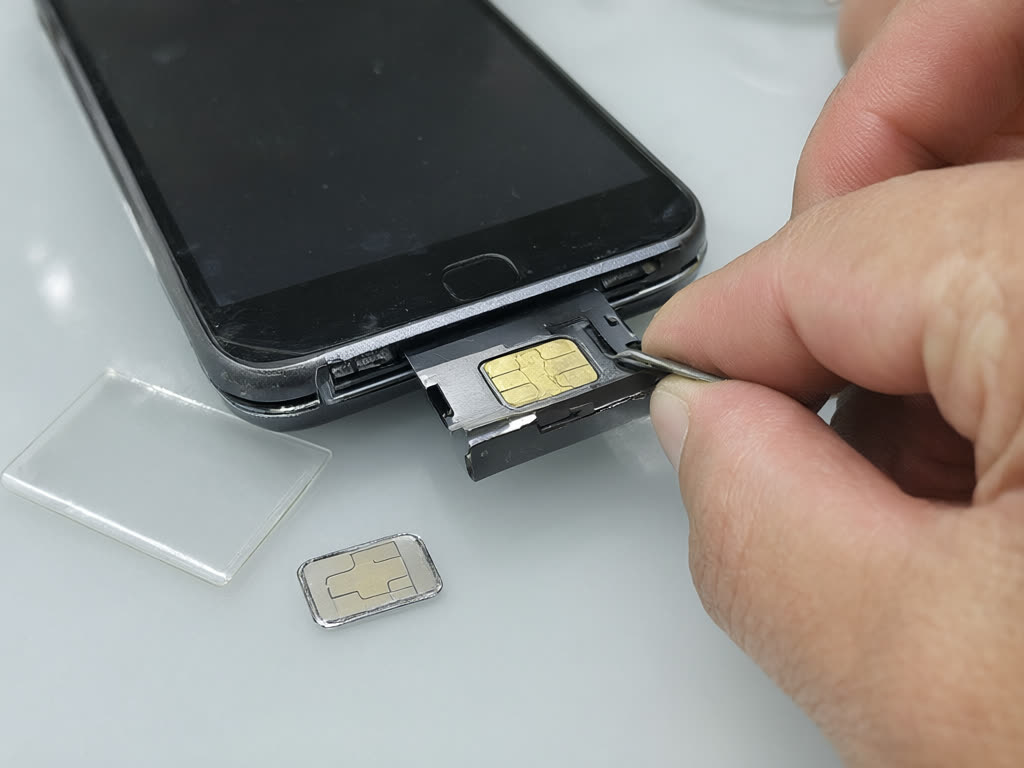
How to check on Android
Android makers and carriers handle this differently, so work through these from quickest to most reliable.
- Look in Settings. Some Samsung Galaxy phones, especially carrier models, show a Network unlock entry under Settings, Connections, More connection settings. If it is there, read what it says rather than assuming its presence means anything. Some phones list a SIM lock status under About phone. Many phones have no such entry at all.
- Check available networks (Pixel and others). In Settings, Network & internet, SIMs, select your SIM and turn off automatic network selection. If the list only shows your own carrier's networks, the phone may be locked; if several carriers appear, it is probably not. Treat this as a hint, not proof.
- Try another carrier's SIM. Borrow a SIM from a friend on a different network and put it in. If the phone connects, or at least shows that carrier's name, it is unlocked. If it shows a message such as "SIM not supported" or asks for an unlock code, it is locked. This is the most reliable home test.
- Ask your carrier. Give them your IMEI (dial
*#06#to see it) and ask whether the phone is unlocked. This is the definitive answer, and the same call can start an unlock if needed.
Typical situations by country
Rules change, and individual carriers set their own policies, so treat this as a starting point and confirm with your carrier.
- United States: locking is common. Phones bought from a carrier, on instalments or prepaid, are usually locked until the device is paid off and a set period has passed; the required wait differs by carrier and has changed in recent years. Phones bought outright from the manufacturer are typically unlocked.
- Canada: since December 2017, new phones must be sold unlocked and carriers must unlock older phones free of charge for individual customers.
- United Kingdom: carriers have not been allowed to sell locked phones since December 2021. Older phones from some carriers may still be locked.
- Japan: phones released from October 2021 onwards are, in principle, sold without a SIM lock. Older models from Japanese carriers may still need unlocking.
- Australia: most phones sold on postpaid plans by the major carriers are unlocked, while phones sold on prepaid deals are often locked to the carrier that sold them.
- Elsewhere: in many countries phones bought from a shop are unlocked by default, while carrier-subsidised or prepaid-bundle phones may not be. If you bought the phone from a carrier and are not sure, ask.
If your phone is locked
- Request an unlock before you travel. Most carriers unlock for free once the phone is paid off and the account is in good standing, usually through an online form or a call. It can take a few days, and some carriers need you to be in the country, so do not leave it until the airport.
- Do not buy an eSIM yet. Once the unlock is confirmed, check Carrier Lock again (iPhone) or test with another SIM (Android), then buy.
- If the carrier refuses, for example because the phone is not paid off, consider a pocket Wi-Fi rental, which works with any phone over Wi-Fi. See eSIM vs pocket Wi-Fi vs SIM card.
- Avoid paid "unlock" services that ask for money to remove a lock remotely without your carrier's involvement. The carrier is the only reliable route.
Common mistakes
- Assuming a phone you own outright is unlocked. If it was originally sold by a carrier, it may still carry the lock even after you finished paying. Ask for the unlock to be applied.
- Confusing eSIM support with being unlocked. Your phone needs both. Check eSIM support on our compatible devices page.
- Testing with a SIM from the same carrier group. Some brands share a network; use a clearly different carrier for the test.
- Waiting until you land. An unlock request often needs the account holder and can take days.
Quick answer: iPhone: Settings, General, About, Carrier Lock should say "No SIM restrictions". Android: try a SIM from another carrier or ask your carrier with your IMEI. If the phone is locked, ask the carrier to unlock it before you travel, and only then buy an eSIM.
Once you know the phone is unlocked, follow our steps to install an eSIM on iPhone or on Android, or read the Japan eSIM guide for the full picture. Questions about refunds are covered in our FAQ.
Last updated: 18 October 2026.
Unlocked and ready?
If your phone supports eSIM and has no carrier lock, you can install a Japan eSIM at home in a few minutes. The days only start when it first connects in Japan.
Japan eSIM from ¥480